Inside Git: How It Works and the Role of the .git Folder

1. How Git Works Internally
When we start learning Git, we usually memorize commands like:
git add
git commit
git push
But to really understand Git, we need to know what happens behind the scenes.
The most important thing to remember is: Git doesn't save changes—it saves snapshots of your project.
Think of Git as Version History
Imagine you're writing a project report.
Version 1
↓

Version 2
↓

Version 3
Each version captures the document at a specific point in time.
Git works the same way.
Every time you run:
git commit
Git creates a snapshot (called a commit) of your project. Instead of tracking every keystroke, it only remembers the versions you choose to save.
How Does Git Identify Every Version?
Every file and every commit in Git gets a unique hash.
b9e904c......
Think of it as a digital fingerprint.
If you change even a single character in a file, Git generates a completely different hash.
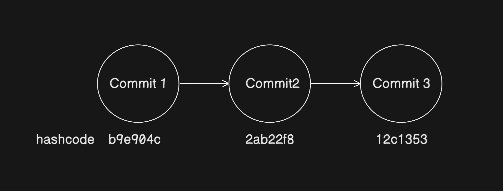
This helps Git quickly detect changes, avoid duplicate storage, and ensure your data hasn't been modified.
The Three Stages of Git
Whenever you work with Git, your files move through three stages.
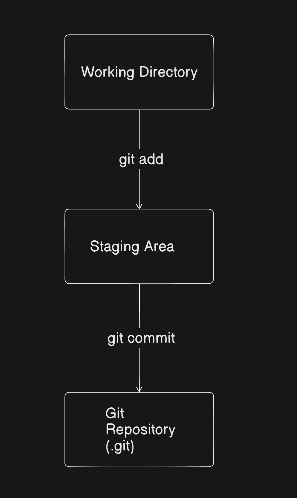
a . Working Directory
This is your project folder where you create and edit files. Git notices your changes, but nothing is saved yet.
b . Staging Area
When you run:
git add
Git prepares your changes for the next commit. You can think of the staging area as a waiting room for files that are ready to be saved.
c . Git Repository
When you run:
git commit
Git creates a snapshot of all staged files, assigns it a unique hash, and stores it inside the hidden .git folder.
How Are Commits Connected?
You can think of commits like nodes in a linked list.
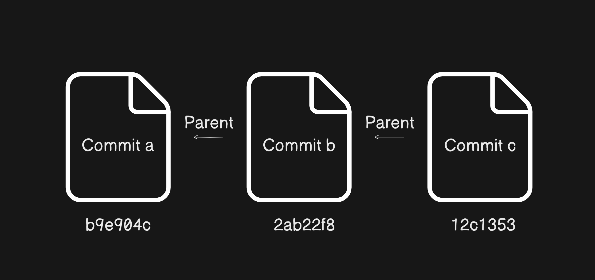
Each commit stores the hash of its parent commit, creating a chain of project history.
What Happens During git add and git commit?
When you run:
git add
Git:
Reads the file.
Creates a hash for its content.
Stores it as a Git object.
Adds it to the staging area.
When you run:
git commit
Git:
Creates a snapshot of all staged files.
Generates a unique commit hash.
Stores the snapshot inside
.git.Links it to the previous commit.
2. Understanding the .git folder.
When you run git init, Git creates a hidden .git folder. This folder is where Git stores everything about your project.
See it:
ls -la    # On Linux/Mac
dir /a    # On Windows
Inside .git
.git/
├── HEAD              # Points to current branch
├── config            # Repository settings
├── objects/          # All your data (commits, files)
├── refs/             # Branch pointers
├── index             # Staging area
└── logs/             # Change history
Most important:
objects/: Where Git stores all data
refs/: Where branch pointers live
HEAD: Shows your current position
index: Your staging area
Rule: Never manually edit files in .git. Let Git handle it.
3. Git Objects: Blob, Tree, Commit
This is the heart of Git. Everything you commit is compressed and stored here as an "object." It stores commits, trees, and blobs.
a. Blob (Binary Large Object):
Stores file content only. No filename, no folders—just content.
Example:
File index.html with content "Hello World" becomes a blob containing just "Hello World".
b. Tree (Directory Structure):
Stores folder structure. Lists files and their locations.
Example:
"This folder has index.html (blob b9e904c) and style.css (blob 16d67a4)."
c. Commit (Snapshot):
A Commit is a saved snapshot of your project. Besides saving the project, Git also records who made the change, when it was made, and why (through the commit message).
Example:
Snapshot:
✓ Project state saved
✓ Author: Name
✓ Date: Month DD, YYYY
✓ Message: Add homepage
About the author
- ☕ Code. 🧠 Learn. 🚀 Improve. 🔄 Repeat.
Comments
Join the discussionNo comments yet. Be the first to comment.


